Appearance
Operate
Environment explorer
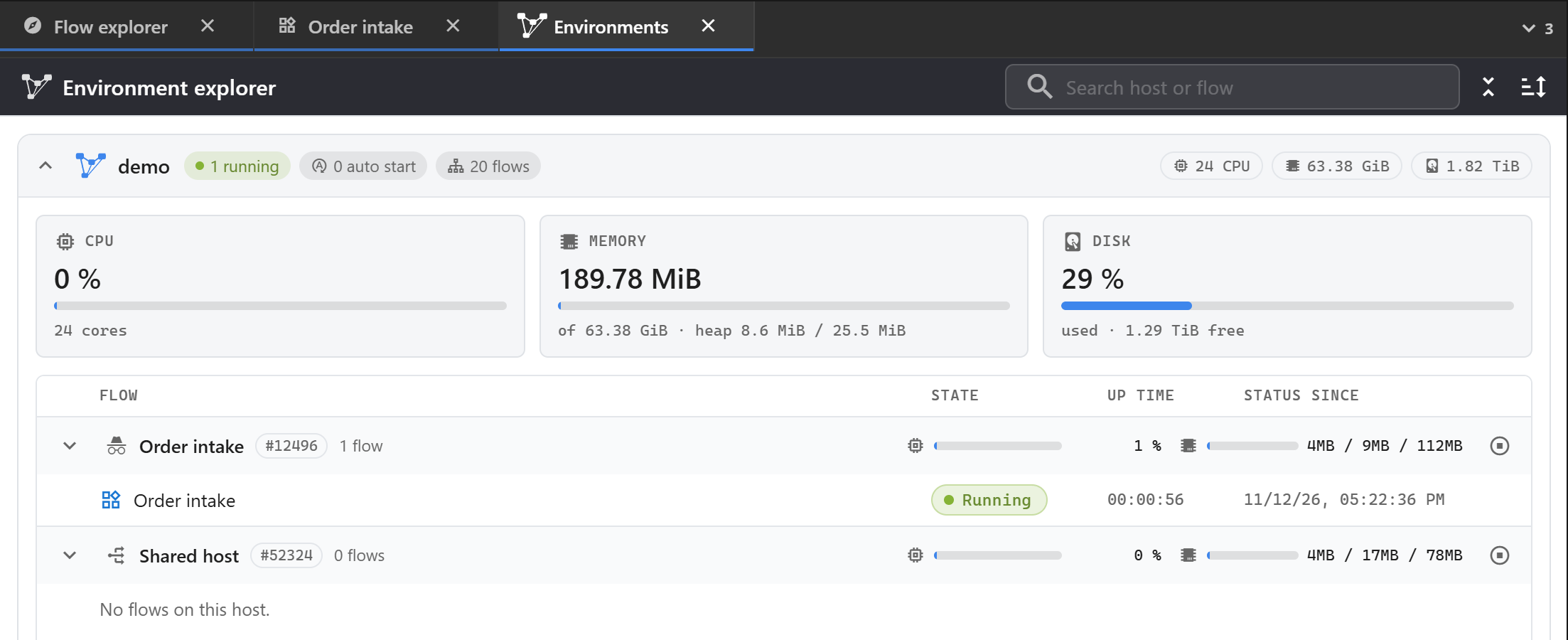
The Environment explorer shows the environment's hosts and the flows on each, with CPU, memory and disk. For every flow you see its state, up time and how long it has been in that state. Open, start, stop, pause or restart a flow from its ⋮ menu; stop a host with all its flows from its row.
Search by host or flow name and sort by CPU or memory to find what uses the most.
Logs
The log viewer searches the logs of every flow and of the platform.
- Query takes a Lucene query; press F1 for the syntax.
- Filter by Severity, Flow and Period.
- The histogram shows when entries were written; click a bar to zoom into that time.
Expand an entry to see every field: flow, component, pin, script line, record, metadata, correlation id, exception. Filter for or out a value with one click, or add the field as a column. The component link opens the flow at the component, or the script at the line. On an error, Analyze with AI and Fix with AI hand it to the assistant.
Open the log viewer from the rail, from the Logs button of a flow, or with View logs on a folder or flow.
Alarms
An alarm tells people that something needs attention.
Define an alarm
In /usr/alarms, click Add alarm definition and set:
- the Alarm name flows use, a title and a default message,
- how it is sent: email (To and Cc addresses), web push notification in the browser, or SNMP trap to your monitoring system.
Raise an alarm
- With the Alarm plugin: always, on an exception, or when a component gets more or fewer requests than you set, or takes too long.
- From a script with
Services.Alarms.Raise.
The Alarms viewer lists raised alarms; Clear alarm marks one handled. To get web push notifications, switch on Receive notifications in Settings.
Versions and promotion
Change history
Every save of a flow is a version. View change history lists them with user and time. For each version you can preview it, open it read-only, see what changed, or Restore this version.
Git
Link a folder to a git repository in its properties (repository link, user name and password, Test repository link). Then, on the folder:
- Commit and push to repository commits your changes with a message,
- Update and pull from repository brings in changes from the remote,
- Check repository shows local changes and commits.
Download and upload
Download any object or folder as a zip, or the whole repository with Download all. Upload a zip into a folder, with Overwrite existing when you replace objects. Copy and paste also works between environments.
Database links
A database link holds the connection to a database. Database plugins use it by name, so credentials stay out of the flows.
In /usr/dblinks, click Add database link and set the database type, host, port, database or service name, schema and credentials. Test checks the connection.
| Database | Default port |
|---|---|
| Microsoft SQL Server | 1433 |
| PostgreSQL | 5432 |
| Oracle | 1521 |
| MySQL, MariaDB | 3306 |
| IBM Db2 (LUW) | 50000 |
| Snowflake | 80 |
| ClickHouse | 8123 |
Explore browses the database's tables, views, procedures and functions, and adds flow types for an object to the open flow. Generate EF plugin creates an Entity Framework plugin from the database's tables.
Network
The Network explorer shows the sites connected to the environment through the cloud bridge, their traffic, and the network routes. Download the network client for a site from its row.
A network route, defined in /usr/routes, opens a TCP or UDP channel between a site and the environment: IN from your network to the environment, OUT from the environment to your network.
Certificates
In /usr/certs, Add certificate stores a certificate file (.crt, .cer, .pem, .der, .p12, .pfx) with its password.