Appearance
The workspace
The designer is where you build, run and watch your flows. It runs in the browser and works on one environment at a time.
The left rail
| Item | What it opens |
|---|---|
| Flow explorer | The folders and flows of the repository, with search, sorting and favorites |
| Repository browser | A side panel with the repository tree and the environment selector |
| Environment explorer | Hosts and running flows, with CPU and memory. The badge counts running flows. |
| Network explorer | Sites, connected clients and network routes |
| Logs | The log viewer |
| Alarms | Raised alarms. The red badge counts alarms not yet cleared. |
| Viaducta AI | The assistant, when AI is enabled on the server |
At the top, your initials show who is signed in. The dot on them is green while the designer is connected to the server. The cog at the bottom opens Settings and Logout.
Environments
The environment selector sits at the top of the Repository browser. It shows the environment's name and the host name of its controller. Pick another environment from its menu; the one marked default loads when you open the designer. The (i) button shows the environment's details and sets it as default.
Give each environment its own colour in Settings. The colour shows on the selector and on the document tabs, so you always see whether you are working on test or production.
The repository
The repository holds everything you build: folders, flows, test flows and the objects flows use. Click an object in the Repository browser to open it; right-click it, or use its ⋮ button, for everything else: add, copy, move, delete, start and stop, view logs, view change history, download and upload.
The /usr folder holds the environment's shared objects, each kind in its own folder:
| Folder | Holds |
|---|---|
/usr/config | Expression settings packages |
/usr/dblinks | Database links |
/usr/alarms | Alarm definitions |
/usr/routes | Network routes |
/usr/certs | Certificates |
The Flow explorer
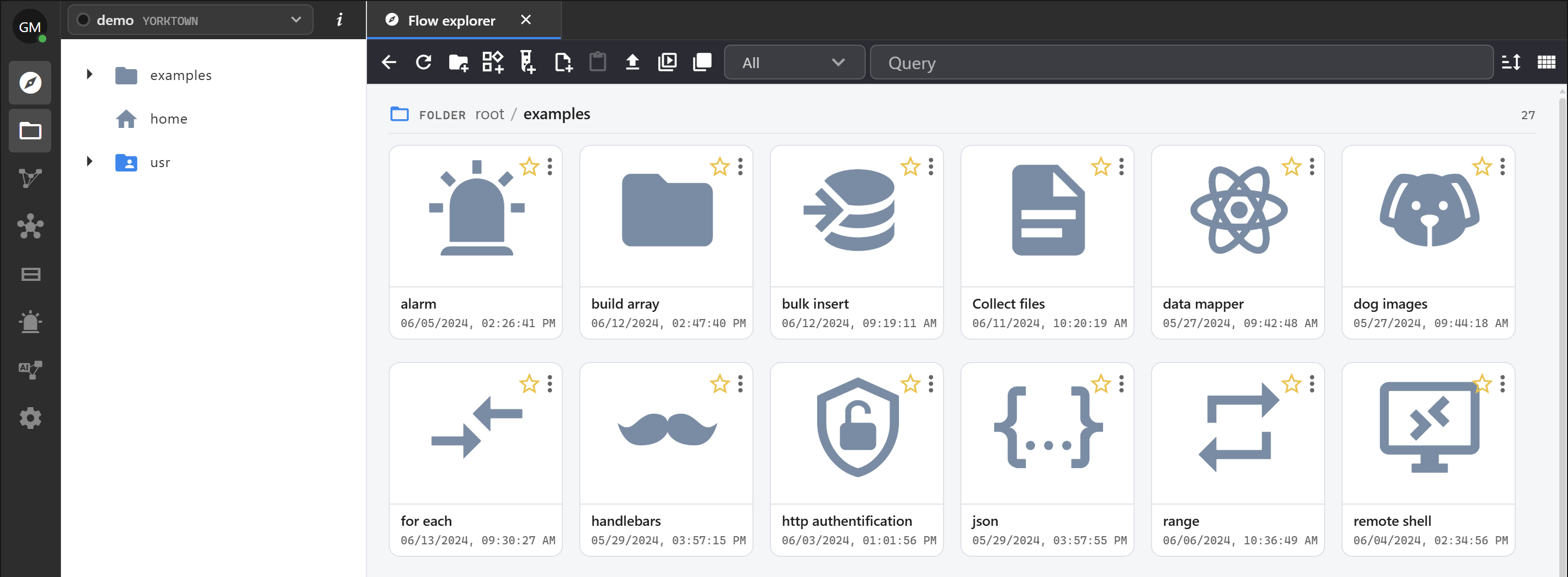
The Flow explorer shows one folder at a time, with a breadcrumb back to the root. Its toolbar creates flows, test flows and folders, uploads archives and starts or stops every flow in the folder.
- Search looks in names, descriptions, plugins, scripts, SQL, timers, types, URLs and more; pick the scope next to the search box.
- Favorites: star a flow to keep it at the top of the Flow explorer.
- Sorting and Display (list or details) are in the toolbar.
Tabs
Every object opens in its own tab. A dot on a tab marks unsaved changes. Right-click a tab to close it, the others or all. With more than one tab open, the chevron button lists them all.
Keyboard shortcuts
| Key | Action |
|---|---|
| Ctrl+S | Save |
| F6 | Compile |
| F5 | Start, or continue when paused in the debugger |
| Ctrl+F5 | Debug |
| Shift+F5 | Stop |
| Ctrl+R | Save, recompile and restart |
| F10 / F11 / Shift+F11 | Step over / into / out, while debugging |
| Ctrl+F9 | Remove all breakpoints |
| F4 | Switch the panel layout |
| Ctrl+A | Select everything on the canvas |
| Ctrl+X / C / V | Cut / copy / paste |
| Ctrl+Z / Y | Undo / redo |
| Delete | Delete the selection |